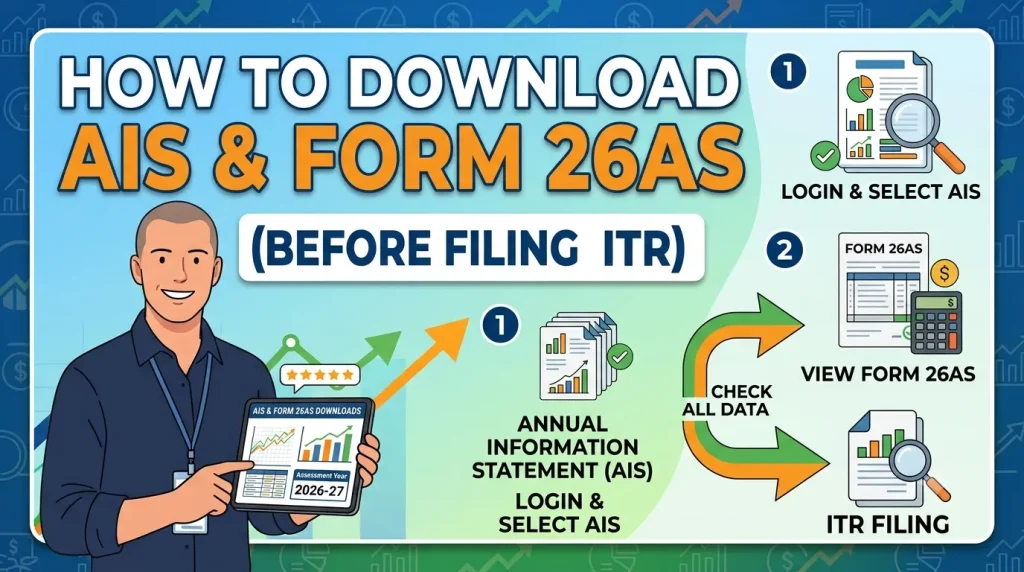
If you are planning to file your ITR for FY 2025-26, there are two documents you must download and review before you touch anything on the filing page — AIS and Form 26AS. Skipping this step is the single most common reason taxpayers receive mismatch notices from the Income Tax Department weeks or months after filing.
Think about it this way — the Income Tax Department already has a record of your salary, your FD interest, your mutual fund redemptions, your dividends, and dozens of other financial transactions linked to your PAN. When you file your ITR, their system automatically compares what you declared against what they already know. If the two do not match — even by a small amount — you get a notice.
Downloading AIS and Form 26AS first, cross-checking them against your own records, and then filing gives you full control over your return before submission. In this article, I will walk you through exactly How to Download AIS and Form 26AS step by step, what each one shows, and how to use them together before filing your ITR for AY 2026-27.
Download Income Tax Calculator in Excel using below links:
What is Form 26AS?
Form 26AS is a consolidated tax credit statement that shows details of TDS, TCS, advance tax, self-assessment tax, and refunds linked to your PAN.
In simple words — Form 26AS tells you how much tax has already been paid against your PAN. Every time your employer deducts TDS from your salary, or your bank deducts TDS on your FD interest, or you pay advance tax yourself — all of it gets recorded in Form 26AS.
When you file your ITR, the TDS credit you claim must match what appears in Form 26AS. If your employer filed an incorrect TDS return, the mismatch shows up here — and that is your signal to contact your employer to correct it before you file.
As per the provisions of the new Income Tax Rules, 2026, Form 26AS has been replaced by Form 168, applicable for FY 2026-27. However, for the current filing season, taxpayers should continue to refer to Form 26AS, since it relates to the income earned during FY 2025-26. So for ITR filing this year, Form 26AS is still the document you need.
Form 26AS contains:
- TDS deducted on your salary by employer
- TDS deducted by banks on FD interest, recurring deposits
- TDS on rent received, professional fees, or other payments
- TCS collected on vehicle purchases, foreign remittances
- Advance tax and self-assessment tax paid by you
- Income tax refunds received in the past
ALSO READ: What is Form 16 in Income Tax Return
What is AIS (Annual Information Statement)?
AIS (Annual Information Statement) is essentially your financial report card as seen by the Income Tax Department. It captures everything your bank, employer, broker, and other institutions have reported against your PAN.
AIS is much broader than Form 26AS. While Form 26AS only shows taxes deducted, AIS shows the actual income and transactions — interest earned, dividends received, mutual fund redemptions, property transactions, foreign remittances, and more.
If any information or financial transaction on AIS is shown to be incorrect, taxpayers can submit feedback to request corrections, as AIS displays both the Reported Value (value reported by the reporting entities) and the Modified Value (the value after considering the taxpayer’s feedback) for each type of information.
AIS contains:
- Salary income reported by your employer
- Savings account and FD interest reported by your bank
- Dividend income from stocks and mutual funds
- Purchase and sale of mutual fund units — reported by CAMS and KFintech
- Stock market transactions — reported by BSE and NSE
- Property purchase and sale transactions
- Foreign remittances above Rs. 7 Lakh
- High-value cash deposits above Rs. 10 Lakh
- GST turnover for business filers
Are AIS and Form 26AS the Same?
No — and this is where most people get confused. They serve different purposes and you need both.
| Form 26AS | AIS | |
|---|---|---|
| TDS deducted | Yes | Yes |
| Taxes paid by you | Yes | Yes |
| Savings / FD Interest earned | No | Yes |
| Dividend income | No | Yes |
| Mutual fund transactions | No | Yes |
| Share market transactions | No | Yes |
| Property transactions | No | Yes |
| Feedback option | No | Yes |
Use Form 26AS to verify your TDS credits before claiming them in your ITR. Use AIS to verify all income reported against your PAN. Both together give you the complete picture — neither alone is sufficient.
How to Download Form 26AS – Step by Step
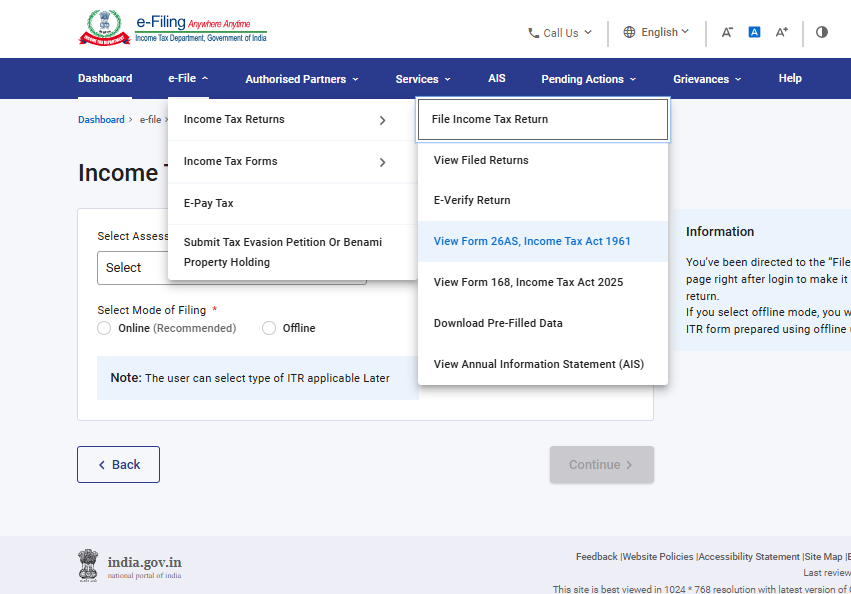
You can download your Form 26AS from the Income Tax e-filing portal by following these steps: Go to the Income Tax e-filing portal and click on the Login button to access your account. Enter your PAN, Aadhaar number, or user ID, along with your password and captcha code. After successful authentication, you will be redirected to your dashboard. From the dashboard, go to e-File > Income Tax Returns > View Form 26AS (Tax Credit).
Here are the complete steps:
- Step 1 — Go to incometax.gov.in and log in with your PAN and password
- Step 3 — A pop-up will appear confirming you are being redirected to the TRACES website. Click Confirm
- Step 4 — On the TRACES portal, check the box accepting the terms and click Proceed
- Step 5 — Click on View Tax Credit (Form 26AS)
- Step 6 — Select the Assessment Year — for FY 2025-26 income, select AY 2026-27
- Step 7 — Under View As, select HTML and click View/Download
- Step 8 — Once it opens, click Export as PDF to download Form 26AS as a PDF file
Can I Download Form 26AS as a PDF?
Yes. To save a copy, click Export as PDF. The Form 26AS statement will be downloaded to your device in PDF format. Form 26AS downloaded from the Income Tax portal is generally not password-protected and can be viewed directly after download.
The password for opening your Form 26AS is your date of birth in DDMMYYYY format — though most downloads are not password-protected when done through the income tax portal.
Alternative – Download Form 26AS Through Net Banking
Taxpayers can also download Form 26AS through their net banking option without having to log in to the Income Tax Portal. Most major banks including SBI, HDFC, ICICI, and Axis provide direct access to Form 26AS from within their net banking dashboard under the tax section. This is a quick alternative if you have trouble accessing the income tax portal directly.
ALSO READ: ITR 1 vs ITR 2 vs ITR 3 vs ITR 4 Forms while Filing Income Tax Return
How to Download AIS – Step by Step
Follow these steps to download your Annual Information Statement:
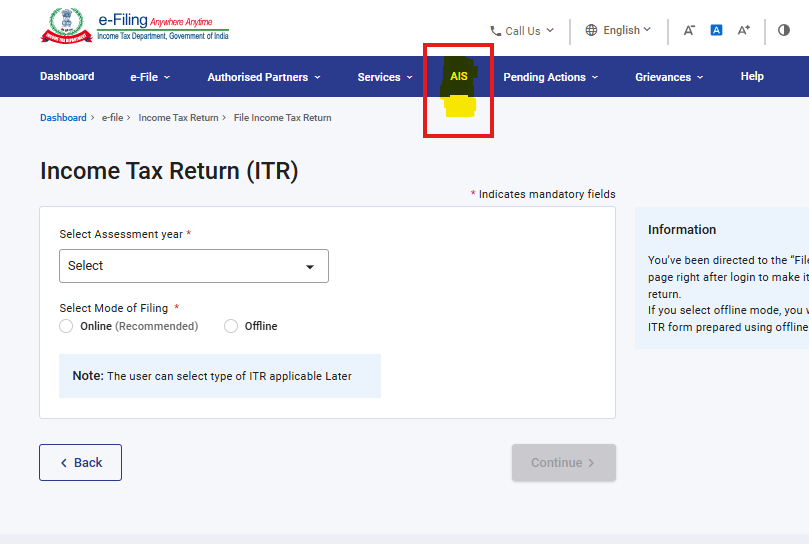
Here is the complete step-by-step:
- Step 1 — Go to incometax.gov.in and log in with your PAN and password
- Step 3 — Click Proceed on the pop-up — this redirects you to the AIS Compliance Portal in a new tab
- Step 4 — You will see two tiles — AIS and TIS. Click on the AIS tile
- Step 5 — Select FY 2025-26 from the financial year dropdown
- Step 6 — Click the Download icon on the AIS tile
- Step 7 — Choose your preferred format — PDF, JSON, or CSV and click Download
You can download Annual Information Statement in PDF, JSON, CSV file formats.
What is the Password to Open AIS PDF?
Password = PAN (lowercase) + DOB in DDMMYYYY format. For example, if your PAN is AAAAA0000A and your date of birth is January 15, 1990, the password is aaaaa0000a15011990.
How to File ITR 1 Online VIDEO
Watch more Videos on YouTube Channel
What is TIS and Should I Download That Too?
TIS displays the information available in AIS category-wise. It shows the original value as well as the revised value — the value processed after the taxpayer’s feedback. The revised values in TIS are used for prefilling of the return.
In simple words — AIS shows every individual transaction, TIS shows a category-wise summary. When the income tax portal pre-fills your ITR, it picks values from TIS. So if anything looks wrong in your pre-filled ITR, the error is in TIS — which traces back to AIS.
Download both AIS and TIS. Cross-check AIS for transaction-level accuracy and use TIS to verify the pre-filled values in your return.
ALSO READ: How to File ITR (Income Tax Return) for Salaried Employees
What to Check After Downloading Both Documents
Once you have both Form 26AS and AIS downloaded, here is what to verify before you start filing:
Form 26AS:
- Total TDS deducted on salary — match this with your Form 16
- TDS deducted by your bank on FD interest
- Any advance tax or self-assessment tax you paid during the year
- If you changed jobs — verify TDS from both employers appears correctly
From AIS:
- Salary income matches your Form 16 and actual salary received
- FD interest shown matches your bank’s interest certificate
- Mutual fund redemptions — verify the amounts match your broker or fund house statements
- Dividend income — compare with your broker’s dividend statement
- Any property transaction that appears — ensure it is reported in your ITR
Checking AIS before filing saves you a lot of trouble later. Even a single transaction reflected in the form that goes unreported in your return can lead to an Income Tax notice.
What to Do if AIS Shows Incorrect Information
This happens more often than you would expect — a bank reports the wrong FD interest amount, or a transaction that belongs to someone else appears under your PAN. Do not panic and do not file a wrong return just because AIS shows an incorrect figure.
You can submit feedback on active information displayed under TDS/TCS information, SFT information or other information. Click on the information, then click on the Optional button in the Feedback column for the relevant information. Choose the relevant feedback option and enter the feedback details. Click Submit to submit the feedback.
The six feedback options available are:
- Information is correct
- Income is not taxable
- Income is already included in another entry
- Information relates to another year
- Information is duplicate / entered in error
- Information does not belong to me
After submitting feedback, the Modified Value in AIS and the Derived Value in TIS both update. The portal then uses this corrected value to pre-fill your ITR.
One important note: Submitting feedback in AIS corrects the pre-filled ITR value, but it does not fix the TDS credit in Form 26AS. If a bank reported a wrong TDS amount, you need to contact the bank to file a corrected TDS return — AIS feedback alone is not sufficient for TDS credit claims.
Frequently Asked Questions
Can I download Form 26AS as a PDF? Yes. Log in to incometax.gov.in, go to e-File → Income Tax Returns → View Form 26AS, confirm the redirect to TRACES, select the Assessment Year, choose HTML format, and click Export as PDF. The PDF downloads directly to your device and is generally not password-protected.
What is Form 26AS? Form 26AS is your consolidated tax credit statement showing all TDS deducted on your income, TCS collected, advance tax paid, and self-assessment tax paid — all linked to your PAN. It is the authoritative document for claiming TDS credit in your ITR and must be verified before filing.
How do I access my AIS in Income Tax? Log in to incometax.gov.in, click on the Annual Information Statement (AIS) menu on the dashboard, click on Proceed which will redirect to the AIS portal, and click on the AIS tile to view the Annual Information Statement. Select FY 2025-26 to view transactions for the current filing year.
How to download 26AS and AIS online? Both are available on incometax.gov.in. For Form 26AS — go to e-File → Income Tax Returns → View Form 26AS → redirect to TRACES → select AY 2026-27 → Export as PDF. For AIS — go to Services → Annual Information Statement → Proceed → click the AIS tile → select FY 2025-26 → download in PDF or CSV format.
How long does it take for AIS to update? AIS updates as and when banks, employers, mutual fund houses, and other reporting entities submit their data to the Income Tax Department. It is not real-time — there can be a lag of a few weeks. If a recent transaction is missing, check again closer to the filing date.
Downloading AIS and Form 26AS before filing is not an optional step — it is the foundation of a clean, accurate return. Spend 20 minutes on this before you open the ITR filing page, match every income line against your own records, correct any errors using the AIS feedback tool, and then file with complete confidence.
Save Home Loan Interest Amount!
Use Home Loan Excel Calculator that will help you to Save Interest Amount on Home Loan EMI.
Click below button to download Home Loan EMI and Prepayment Calculator in Excel:
Watch how Home Loan Calculator in Excel Works
Income Tax Calculator App – FinCalC
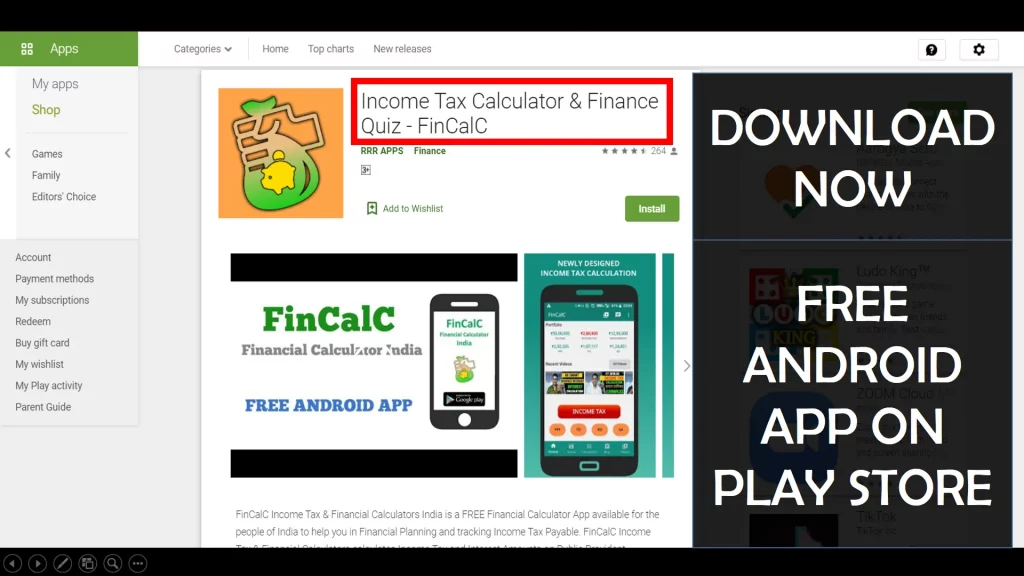
For Income Tax Calculation on your mobile device, you can Download my Android App “FinCalC” which I have developed for you to make your income tax calculation easy.
What you can do with this mobile App?
- Calculate Income Tax for FY 2026-27 and previous FY 2025-26
- Enter estimated Investments to check income tax with Old and New Tax Regime
- Save income tax details and track regularly
- Know how much to invest more to save income tax
- More calculators including PPF, SIP returns, Savings account interest and lot more
Use Popular Calculators:
- Income Tax Calculator
- Home Loan EMI Calculator
- SIP Calculator
- PPF Calculator
- HRA Calculator
- Step up SIP Calculator
- Savings Account Interest Calculator
- Lump sum Calculator
- FD Calculator
- RD Calculator
- Car Loan EMI Calculator
- Bike Loan EMI Calculator
- Sukanya Samriddhi Calculator
- Provident Fund Calculator
- Senior Citizen Savings Calculator
- NSC Calculator
- Monthly Income Scheme Calculator
- Mahila Samman Savings Calculator
- Systematic Withdrawal Calculator
- CAGR Calculator
I’d love to hear from you if you have any queries about Personal Finance and Money Management.
JOIN Telegram Group and stay updated with latest Personal Finance News and Topics.
Download our Free Android App – FinCalC to Calculate Income Tax and Interest on various small Saving Schemes in India including PPF, NSC, SIP and lot more.
Follow the Blog and Subscribe to YouTube Channel to stay updated about Personal Finance and Money Management topics.
Disclaimer: Mutual Fund investments are subject to market risks, read all scheme related documents carefully. Registration granted by AMFI, membership of SIRO (if applicable), and certification from NISM in no way guarantee performance of the intermediary or provide any assurance of returns to investors.
Distributor Details: Name: Abhilash Gupta | AMFI Registered Mutual Fund Distributor | ARN: 367014